Thursday, April 19, 2012

Yahoo Stock Chart Ajax Web Part

Requirements: Need a stock web part, that refreshes in real time from Yahoo Finance. Given a stock symbol, the web part needs to fulfill the following requirements:


Req. 1) display the stock chart image for 1d, 5d, 3m, 1y, 2y, 5y, as shown in the screenshot below:


Req. 2) display stock quote information such as the following: Trade, Change, Open, PreviousClose, MarketCap etc., as shown in the figure below:


3) The image in Req. 1) and data in Req. 2) needs to be updated asynchronously while the browser is open.

Solutions: Several third party web parts were investigated, but none fullfilled all the above requirements, so we ended up developing a custom solution.


Solution Approach #1: Our first attempt was to develop the web part in such a manner that it would load the images for Req. 1) and data points for Req. 2) in real time. For example, we tried to use SharePoint Designer to load the data and images directly using the Data View Webpart and the Content Editor Web Part. This approach has been described very well in this post. However, we noticed that we got HTTP Error 504 Gateway timeouts quite a few times during a day, thus causing issue loading the stock image and quote information. Thus, we decided to cache the image locally in a location accessible to SharePoint (we decided to use 14 Hive)  and stock data points in a local database accessible to the SharePoint Page, as explained in Approach #2.

Approach #2: So it was decided to create a separate windows service that runs periodically and downloads the image to the 14 hive folder and data to a simple table in a database. The web part would load, in real time, the image from the 14 hive folder  (Req. 1) and the data (Req. 2) from a database. This would prevent a timeout on the web part, ensure that it gets data locally and also improve performance.


The design diagram for this solution is as follows:


Requirement 1) and 2) were fulfilled with the above design and in order to fulfill Requirement 3) we used the ASP.NET AJAX Update Panel that refreshes the web part asynchronously. I will be sharing the web part and windows service code on this blog soon.

Tuesday, April 3, 2012

SharePoint Farm Backups and Recovery plan

This post describes a recent Backups and Recovery plan I executed. It aims to describe my thought process, decisions and challenges faced while designing this plan. It could also be applied to SharePoint Farms with topologies different from the one mentioned below.

SharePoint Farm Topology: 3 server farm consisting of a web, app and database server.
Restore Requirements:
Our Requirements are described in the table below:

þ : Client Requirement                 ý: Not a Client Requirement
Requirements No.
Restore Type
a)In Place
b)Out of Place
c) Workflow History
1
Item
þ
þ
ý
2
List
þ
þ
ý
3
Site Collection
þ
þ
þ
4
Platform
þ
þ
þ

FYI, In-Place means restoration on the same farm and Out of Place restoration on another farm (such as in case of a Disaster).

Other Requirements:
5) All backups listed above needed to be fulfilled using a scheduled job
6) Incremental Backups needed each day during the week and Full Backups during the weekend
7) The solution needed to back up the database transaction logs daily
8) The solution should be complete and eliminate the need for Sql Database backups

What is so special about Workflow History: You might be wondering why I gave so much emphasis to Workflow History in the client requirements. The reason is that very often Workflows are implemented for critical business processes and the most important data in them pertains to who said what? when?, i.e: the audit trail.
Now consider the scenario, you have a custom list with a workflow running on it. For some reason you loose a list item, or for that matter, an entire list and need to restore its data along with its workflow history, can you restore it individually from a backup? The answer is: there is no product I know of that will let you restore a list item or an entire list along with its own Workflow History. Why is that so, because Workflow History is one hidden list with its data referencing both, a task list and the actual sharepoiont list on which the workflow is kicked off. So when we were designing this backup solution, it was important for us to know that the only way to restore a sharepoint list with its workflow history was to restore the ENTIRE site collection. We could not go more granular than that.

Solutions Considered:
a) OOTB: SharePoint would only be able to support 3 a), b), c), 4 a) and 4c) OOTB.
1 a), b) or c) would not be possible. 2 a) or b) would be possible but you would have to find the powershell command and write a scheduled job for it. It would be hard to manage such a job for an ever growing farm with new lists being added daily.

As you can see, SharePoint offers very basic Backup and Restore options OOTB and would not meet the requirements of many Enterprise SharePoint Farms. I decided to evaluate third party products.

b) VM Snapshots: Since the web, app and sql are all running virtual in this case, we could take vmware snapshots but that would only work for 4 a) and for no other Requirement. Another downside is that the resotration process is out of control of SharePoint Administrators and we would have always needed to depend on the Infr. team for restoration. Lets assume the Sql was physical and web and app were virtual ( as in many large SharePoint Installations), VM snapshots would still be able to restore the web and app servers and you would still need to depend on Sql backups as described in c ) below. A combination of VM Snapshots and sql backups could satisfy requirements 3 a), 3 c) along with 4 a), but we would still be left with not implementing requirements mentioned in 1) and 2).


c) Sql Backups : Sql Backups could be used to satisfy Requirements in 3 a), 3 b), 3 c) and 4 a), but we would but we would still be left with not implementing requirements mentioned in 1) and 2).


d) DocAve Backups and Recovery (AvePoint): After evaluating several third-party products, I thought the one that gave us the maximum value was DocAve. This product seems to be the most mature product in this product space. It would work for all of the above mentioned requirements, except any of them related to Workflow History. Event though you can restore a Site Collection containing Workflow History for several Workflows using powershell, DocAve does not support it. We had to write a scheduled job separately for that purpose as explained in my previous blog post located here. Avepoint technical support so far has been pretty good and that is one more reason I would like to stay with DocAve.


Conclusion: Adopting Strategy d) was the only way we could implement all the Requirements mentioned above. A combination of strategy a), b) and c) could be used to satisfy a subset of the above Requirements.


Monday, April 2, 2012

Powershell SiteCollection Backup script,Move files, Delete Files and Send Emails

We needed a powershell script for a SiteCollection backup job that does the following:

- Backup the Site Collection to a local drive

- Move the locally copied .bak file to a network file share backuped up to tape

- Delete the last file copied over a certain number of days ago, so that only a certain number of files were retained

- Send an email about success/failure of the job

The following powershell script that does all of the above:

1: Add-PsSnapin Microsoft.SharePoint.Powershell– ?ErrorAction SilentlyContinue
2:  
3: Start-SPAssignment -Global            # This cmdlet takes care of the disposable objects to prevent memory leak.
4:  
5: $srcSite=""                   # Replace with your site collection URL

6: $localBkUpLocation=""         # Replace with your local backup location
7: $destBkupLocation=""          # Replace with your destination backup location
8: 
9: $today=Get-Date -format "MM-dd-yyyy HH.mm.ss"     # Get current date and format it to avoid invalid characters such as "/" and ":"
10: $filename = ""  + $today
11: 
12: write-Host Start backing up $srcSite to $localBkUpLocation
13: try 
14: {
15:         #BackUp Site Collection
16:         Backup-SPSite -Identity $srcSite -Path $localBkUpLocation\\$filename.bak -force -ea Stop
17:  
18:         # move all backup files from the localBkUpLocation to the destBkupLocation
19:         Write-Host "Moving backups from $localBkUpLocation to $destBkupLocation" 
20:         Move-Item ($localBkUpLocation + "\\*.bak" ) $destBkupLocation
21:                 
22:         #Delete backups from Fileshare older then 10 days
23:         $Now = Get-Date
24:         $Days = "10"  
25:         $LastWrite = $Now.AddDays(-$days)
26:         $Files = get-childitem $destBkupLocation -include *.bak -recurse | Where {$_.LastWriteTime -le "$LastWrite" } 
27:         
28:         if  (!$Files) 
29:         { 
30:             Write-Host "variable is null"  
31:         }
32:         else 
33:         {
34:       
35:         foreach  ($File in  $Files)
36:         {
37:          write-host "Deleting File $File"  -foregroundcolor "Red" ;  Remove-Item $File | out -null 
38:         }
39:         }
40: 
41:         write-Host Backup succeeded.
42: 
43:          # Edit the From Address as per your environment.
44:           $emailFrom = "" 
45:          # Edit the mail address to which the Notification should be sent.
46:           $emailTo = "" 
47:          # Subject for the notification email. The +“” ? part will add the date in the subject.
48:           $subject = "The  Site Collection Backup file was created with name:  " +"$filename"  + "$result" 
49:          # Body or the notification email. The +“” ? part will add the date in the subject.
50:           $body = "The  Site Collection Backup file was created with name: " +"$filename" 
51:           # IP address of your SMTP server. Make sure relay Is enabled for the SharePoint server on your SMTP server
52:           $smtpServer = "" 
53:           $smtp = new -object  Net.Mail.SmtpClient($smtpServer)
54:           $smtp.Send($emailFrom, $emailTo, $subject, $body)
55: }
56: catch         # If the process failed
57: {
58:           $ErrorMessage = $_.Exception.Message
59:           # Configure the below parameters as per the above.
60:           $emailFrom = "" 
61:           $emailTo = "" 
62:           $subject = "The Site Collection Backup Job failed on " +"$today" 
63:           $body = "The Site Collection Job failed on " +"$today and the reason for failure was $ErrorMessage." 
64:           $smtpServer = "" 
65:           $smtp = new -object  Net.Mail.SmtpClient($smtpServer)
66:           $smtp.Send($emailFrom, $emailTo, $subject, $body)
67:   
68: }    
69:  
70: Stop-SPAssignment -Global
71:  
72: Remove-PsSnapin Microsoft.SharePoint.PowerShell
73:  
74: write-Host "Finished script."
75: 

Friday, March 30, 2012

Lessons from a recent SharePoint Designer Workflow

SharePoint Developers and Architects are often faced with a dilemma on what tool to use for SharePoint based workflows. OOTB workflows are usually only meant for very simple workflows and most often there are customizations involved with most Enterprise Workflows. The best way to save customers time and money is to find a way to leverage OOTB tools such as SPD.

In this blog post, I explain the limitations of using SPD Workflows. Hopefully this post will help you realize what you cannot do OOTB and find workarounds for existing limitations of using a SPD Workflow.

Advantages of using SPD are already well known: no code, declarative in nature, lots of OOTB actions and decisions, easy to maintain and deployment across different environments by exporting the workflow as a wsp.

Mentioned below are problems/issues we faced and workarounds for those issues:

- Limitation on the number of approvals: There are issues with publishing the workflow after about 6 approval steps. If your workflow has more than 6 approval steps consider a custom WWF workflow or evaluate third party products such as Nintex/K2. Once we realized this issue, we had to convert a few approval tasks to Collect Data Tasks as a workaround, so that the number of approval steps stayed below 6.

If you notice Workflow publish errors as you add more approval tasks you can follow the steps outlined in the blog post below:


- Audit Requirements: We had some important Audit Requirements on time stamps, version history as well as all change requests and comments added to the tasks completed. As you may already know, SharePoint cleans up workflow history for all Approved Items after 60 days, for performance reasons, correctly so. We had to develop a Timer Job that takes all data from Tasks List and Workflow History List for all approved items and migrates it into a destination list in a report format. We added lookup columns in both the source and destination lists to each other for a better user experience.

- Workflow History Page: Many of our users are on the Mac Platform, and so our requirements from the Beginning was to make this completely browser based. Using SPD, we modified all Task Approval Emails to contain a direct link to that particular Task Approval Page and Workflow History page. That way the users do not need to depend on the Complete Task button in Outlook or first have to go to the List, click on the link to the Workflow History page in order to approve tasks (as shown in the screenshot below):


Our customer wanted some major changes to the layout of the Workflow History page, such as hide the Terminate Workflow links, and hide any links that can allow users to delete tasks. Since the Workflow History page is just an aspx page in the layouts folder, we copied it with a different file name and modified the original one.
Shown below is the original OOTB Workflow History Page with several links our customer wanted removed:

Shown below is the modified Workflow History Page with those links removed:


- Tasks Approvals Page: It is possible to modify the look and feel of OOTB Tasks Approvals page, since it is a combination of an InfopathForm and an ASPX page in the layouts folder named WrkTaskIP.aspx (as shown in the screenshot below):


- Collect Data task: If you use a Collect Data from a User Action, remember it is not possible to Request a Change back to another user in the workflow on that action OOTB.

- Terminate/Reject a Workflow: Another challenge we faced is that, suppose a workflow has 5 approval steps, and, an approver rejects a workflow at step 4, or if a workflow is terminated at step 4, it is not possible to start the workflow again at step 4. It has to be started at step 1 again and repeat all the approvals from the beginning.


Thursday, March 29, 2012

SharePoint 2010 Delete Attachment Bug: customize SharePoint list forms with InfoPath 2010

I just had a major issue with the feature that is used to Customize Infopath Forms for SharePoint 2010 Lists. Microsoft agrees it is a bug and will add it to their bug list. I have confirmed this bug on a brand new SharePoint environment installed with December 2010 CU on it. Follw the steps described below: Step 1) Take an OOTB List and attach files to it. Delete the attached files using the Delete link (as shown in the screenshot below).

Keep trying this a few times. Everything works as expected. Files get attached and deleted correctly.

Step 2) Now, click the Customize Infoth button(as shown in the screenshot below):

Make any minor modification to the form using Infopath such as adding a simple line of Text to it. Then Save anbd Publish the Form.

Step 3) Repeat attaching and deleting files as explained in Step 1). You will notice the Delete link as shown in Step 1) gets replaced by the cross image (as shown in the screenshot below).

Clicking the cross image in order to Delete a file makes a Web Service call, and there is a timing issue that causes the files to not get deleted randomly. If you keep trying sometimes it work and sometimes it does not. I have tried to recreate the issue and within 5 minutes of testing I could recreate it fairly easily.

Update from Microsoft as of 06/25/2012: Microsoft has created a fix for this issue, which will be a part of the June CU. Please see comments from Microsoft below:
"The InfoPath development investigated this issue and decided to create a fix for the issue.   This fix is scheduled to be included in the June 2012 Cumulative Update for Office.  Since cumulative updates are typically released at the end of the month, you should be able to search http://support.microsoft.com for the update at the beginning of July."

Thursday, August 26, 2010

SharePoint 2010 Chart Web Part v/s Dundas Chart for SharePoint

I was really excited to hear that Microsoft was finally going to offer a decent OOTB Charting web part when I heard about the Chart Web part in SP 2010. Having used the Dundas Chart Web part for Sharepoint extensively in SP 2007, I told all my team members that this would eliminate the need to renew our Dundas Chart license once we migrated to 2010, since Microsoft acquired the same web part from Dundas.

Well, I spoke too soon.

After I started playing with the SP 2010 web part, I realized ,even though Microsoft made it a part of the OOTB offering, they elimininated several powerful features from it. The lack of those features made the the 2010 Chart web part less useful for our purposes.

The list of those features is as follows:

1) Code Editor:

Dundas chart has a great Code Editor that lets you do things like manipulate data formats, apply business logic, hide/show the chart web parts etc. See the screenshots below:


Counter Argument: Some of these tasks can be done in Performance Point, but that does involve migration effort. Also the Chart web part is probably sealed so we cannot extend it.

2) Connect to External Data sources

This was a real bummer. In SP 2007, we built several Dundas Dashboards using a custom sql server database and simply writing stored procs that returned data to the Dashboards.

By not including this option, we were suddenly faced with a huge development effort of recreating all our existing dashboards to use some other data source, such as a SP List or BDC.

Please see screenshot below:


Counter Argument: This could be accomplished in BCS, but that again involves migration effort.

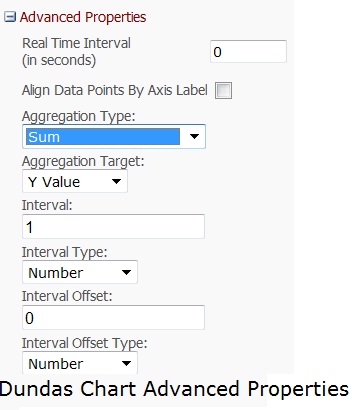
3) Advanced Properties

In version 2.6 of the Dundas Chart, several new and useful Advanced Properties were introduced, such as the ability to do Aggregation Operations on data from an Excel Worksheet at run time. This option was not included in SP Chart web part.

Hopefully in a future release of Sharepoint, or a Service Pack, this functionality would be introduced.

Please see screenshot below:


Counter Argument: Once again, some of these could be done using Analysis Services, BCS or Performance point.

Conclusion:

Power users of Dundas Dashboards cannot expect to save maintenance effort and costs by migrating to the Sharepoint 2010 Chart web part. They will need to migrate to the Dundas Chart for sharepoint 2010.

Thursday, August 19, 2010

SharePoint 2007 issue with Alerts and Event Reciever triggerred on the same list Item

We ran into an interesting issue with SharePoint 2007 alerts recently. I dont know if it has been addressed in SP 2010.

Here is the issue:

- We have a list that has an Event Reciever. The Event Reciever is fired after an Item is Added or Updated, and it updates a number of columns based on the selection the user makes on a particular column (a drop down list). The updates are made based on references to a look up list.

For example, let's assume there is a column called Country ( a drop down list) on the list. There is another column called Public Debt on the list. The default value of the Public Debt column is 0. The user selects United States and submits the entry. On submit, the event reciever is fired and it updates the column called Public Debt with a value stored in another Lookup list.

Now, assume a user has set up an alert for All types of changes ( inserts, updates and deletes). The Alert Email displays the default value of the Columns that are supposed to be set by the Event Reciever. Hence, when a new Item is created the Alert Email displays 0 for the Public Debt column instead of the value set by the Event Reciever. However, the values are displayed correctly in the List Item. That means the Alert Email is created BEFORE the event reciever has run, which is inexplicable.

Now the interesting part is as follows: if the user updates the same list item once again ( even if it is a dummy update, in other words, a column other than Public Debt and Country ), the Alert Email displays the correct vaue.

This causes confusion amongst users, who see values different in emails from those in the List Items.

The onlyy solution I can see to this problem is to use the Event Reciever to send Alert Emails and tell users that the 'Alert Me' functionality has been disabled for that List.