Friday, March 30, 2012

Lessons from a recent SharePoint Designer Workflow

SharePoint Developers and Architects are often faced with a dilemma on what tool to use for SharePoint based workflows. OOTB workflows are usually only meant for very simple workflows and most often there are customizations involved with most Enterprise Workflows. The best way to save customers time and money is to find a way to leverage OOTB tools such as SPD.

In this blog post, I explain the limitations of using SPD Workflows. Hopefully this post will help you realize what you cannot do OOTB and find workarounds for existing limitations of using a SPD Workflow.

Advantages of using SPD are already well known: no code, declarative in nature, lots of OOTB actions and decisions, easy to maintain and deployment across different environments by exporting the workflow as a wsp.

Mentioned below are problems/issues we faced and workarounds for those issues:

- Limitation on the number of approvals: There are issues with publishing the workflow after about 6 approval steps. If your workflow has more than 6 approval steps consider a custom WWF workflow or evaluate third party products such as Nintex/K2. Once we realized this issue, we had to convert a few approval tasks to Collect Data Tasks as a workaround, so that the number of approval steps stayed below 6.

If you notice Workflow publish errors as you add more approval tasks you can follow the steps outlined in the blog post below:


- Audit Requirements: We had some important Audit Requirements on time stamps, version history as well as all change requests and comments added to the tasks completed. As you may already know, SharePoint cleans up workflow history for all Approved Items after 60 days, for performance reasons, correctly so. We had to develop a Timer Job that takes all data from Tasks List and Workflow History List for all approved items and migrates it into a destination list in a report format. We added lookup columns in both the source and destination lists to each other for a better user experience.

- Workflow History Page: Many of our users are on the Mac Platform, and so our requirements from the Beginning was to make this completely browser based. Using SPD, we modified all Task Approval Emails to contain a direct link to that particular Task Approval Page and Workflow History page. That way the users do not need to depend on the Complete Task button in Outlook or first have to go to the List, click on the link to the Workflow History page in order to approve tasks (as shown in the screenshot below):


Our customer wanted some major changes to the layout of the Workflow History page, such as hide the Terminate Workflow links, and hide any links that can allow users to delete tasks. Since the Workflow History page is just an aspx page in the layouts folder, we copied it with a different file name and modified the original one.
Shown below is the original OOTB Workflow History Page with several links our customer wanted removed:

Shown below is the modified Workflow History Page with those links removed:


Tasks Approvals Page: It is possible to modify the look and feel of OOTB Tasks Approvals page, since it is a combination of an InfopathForm and an ASPX page in the layouts folder named WrkTaskIP.aspx (as shown in the screenshot below):


- Collect Data task: If you use a Collect Data from a User Action, remember it is not possible to Request a Change back to another user in the workflow on that action OOTB.

- Terminate/Reject a Workflow: Another challenge we faced is that, suppose a workflow has 5 approval steps, and, an approver rejects a workflow at step 4, or if a workflow is terminated at step 4, it is not possible to start the workflow again at step 4. It has to be started at step 1 again and repeat all the approvals from the beginning.




Thursday, March 29, 2012

SharePoint 2010 Delete Attachment Bug: customize SharePoint list forms with InfoPath 2010

I just had a major issue with the feature that is used to Customize Infopath Forms for SharePoint 2010 Lists. Microsoft agrees it is a bug and will add it to their bug list. I have confirmed this bug on a brand new SharePoint environment installed with December 2010 CU on it. Follw the steps described below: Step 1) Take an OOTB List and attach files to it. Delete the attached files using the Delete link (as shown in the screenshot below).

Keep trying this a few times. Everything works as expected. Files get attached and deleted correctly.

Step 2) Now, click the Customize Infoth button(as shown in the screenshot below):

Make any minor modification to the form using Infopath such as adding a simple line of Text to it. Then Save anbd Publish the Form.

Step 3) Repeat attaching and deleting files as explained in Step 1). You will notice the Delete link as shown in Step 1) gets replaced by the cross image (as shown in the screenshot below).

Clicking the cross image in order to Delete a file makes a Web Service call, and there is a timing issue that causes the files to not get deleted randomly. If you keep trying sometimes it work and sometimes it does not. I have tried to recreate the issue and within 5 minutes of testing I could recreate it fairly easily.

Update from Microsoft as of 06/25/2012: Microsoft has created a fix for this issue, which will be a part of the June CU. Please see comments from Microsoft below:
"The InfoPath development investigated this issue and decided to create a fix for the issue.   This fix is scheduled to be included in the June 2012 Cumulative Update for Office.  Since cumulative updates are typically released at the end of the month, you should be able to search http://support.microsoft.com for the update at the beginning of July."

Thursday, August 26, 2010

SharePoint 2010 Chart Web Part v/s Dundas Chart for SharePoint

I was really excited to hear that Microsoft was finally going to offer a decent OOTB Charting web part when I heard about the Chart Web part in SP 2010. Having used the Dundas Chart Web part for Sharepoint extensively in SP 2007, I told all my team members that this would eliminate the need to renew our Dundas Chart license once we migrated to 2010, since Microsoft acquired the same web part from Dundas.

Well, I spoke too soon.

After I started playing with the SP 2010 web part, I realized ,even though Microsoft made it a part of the OOTB offering, they elimininated several powerful features from it. The lack of those features made the the 2010 Chart web part less useful for our purposes.

The list of those features is as follows:

1) Code Editor:

Dundas chart has a great Code Editor that lets you do things like manipulate data formats, apply business logic, hide/show the chart web parts etc. See the screenshots below:


Counter Argument: Some of these tasks can be done in Performance Point, but that does involve migration effort. Also the Chart web part is probably sealed so we cannot extend it.

2) Connect to External Data sources

This was a real bummer. In SP 2007, we built several Dundas Dashboards using a custom sql server database and simply writing stored procs that returned data to the Dashboards.

By not including this option, we were suddenly faced with a huge development effort of recreating all our existing dashboards to use some other data source, such as a SP List or BDC.

Please see screenshot below:


Counter Argument: This could be accomplished in BCS, but that again involves migration effort.

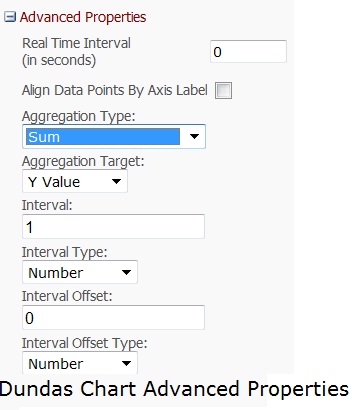
3) Advanced Properties

In version 2.6 of the Dundas Chart, several new and useful Advanced Properties were introduced, such as the ability to do Aggregation Operations on data from an Excel Worksheet at run time. This option was not included in SP Chart web part.

Hopefully in a future release of Sharepoint, or a Service Pack, this functionality would be introduced.

Please see screenshot below:


Counter Argument: Once again, some of these could be done using Analysis Services, BCS or Performance point.

Conclusion:

Power users of Dundas Dashboards cannot expect to save maintenance effort and costs by migrating to the Sharepoint 2010 Chart web part. They will need to migrate to the Dundas Chart for sharepoint 2010.

Thursday, August 19, 2010

SharePoint 2007 issue with Alerts and Event Reciever triggerred on the same list Item

We ran into an interesting issue with SharePoint 2007 alerts recently. I dont know if it has been addressed in SP 2010.

Here is the issue:

- We have a list that has an Event Reciever. The Event Reciever is fired after an Item is Added or Updated, and it updates a number of columns based on the selection the user makes on a particular column (a drop down list). The updates are made based on references to a look up list.

For example, let's assume there is a column called Country ( a drop down list) on the list. There is another column called Public Debt on the list. The default value of the Public Debt column is 0. The user selects United States and submits the entry. On submit, the event reciever is fired and it updates the column called Public Debt with a value stored in another Lookup list.

Now, assume a user has set up an alert for All types of changes ( inserts, updates and deletes). The Alert Email displays the default value of the Columns that are supposed to be set by the Event Reciever. Hence, when a new Item is created the Alert Email displays 0 for the Public Debt column instead of the value set by the Event Reciever. However, the values are displayed correctly in the List Item. That means the Alert Email is created BEFORE the event reciever has run, which is inexplicable.

Now the interesting part is as follows: if the user updates the same list item once again ( even if it is a dummy update, in other words, a column other than Public Debt and Country ), the Alert Email displays the correct vaue.

This causes confusion amongst users, who see values different in emails from those in the List Items.

The onlyy solution I can see to this problem is to use the Event Reciever to send Alert Emails and tell users that the 'Alert Me' functionality has been disabled for that List.